How to fix the Internal Server Error with WordPress on Aruba

Contents
If you bought Linux hosting on an Aruba server and installed WordPress on it, this problem can show up often.
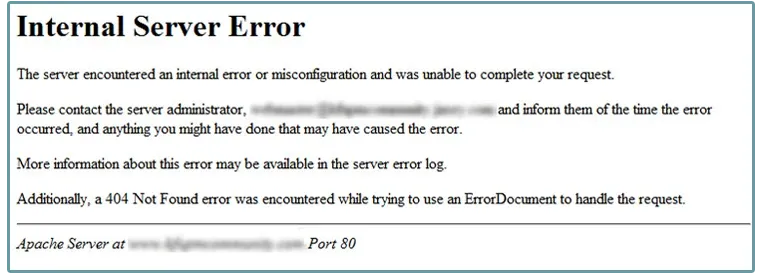
What has happened
It is an Internal Server Error (500), which effectively takes down the whole platform and makes it impossible to browse the website you are administering.
After an install, a migration or a simple WordPress update on Aruba’s Linux hosting, this problem can pop up. It looks serious, but fortunately it is easy to fix. Here’s how.
How to fix it from the Aruba panel
- Log in to your Aruba admin panel (https://admin.aruba.it/)
- From the left-hand menu, choose Servizi Hosting Linux (Linux Hosting Services)
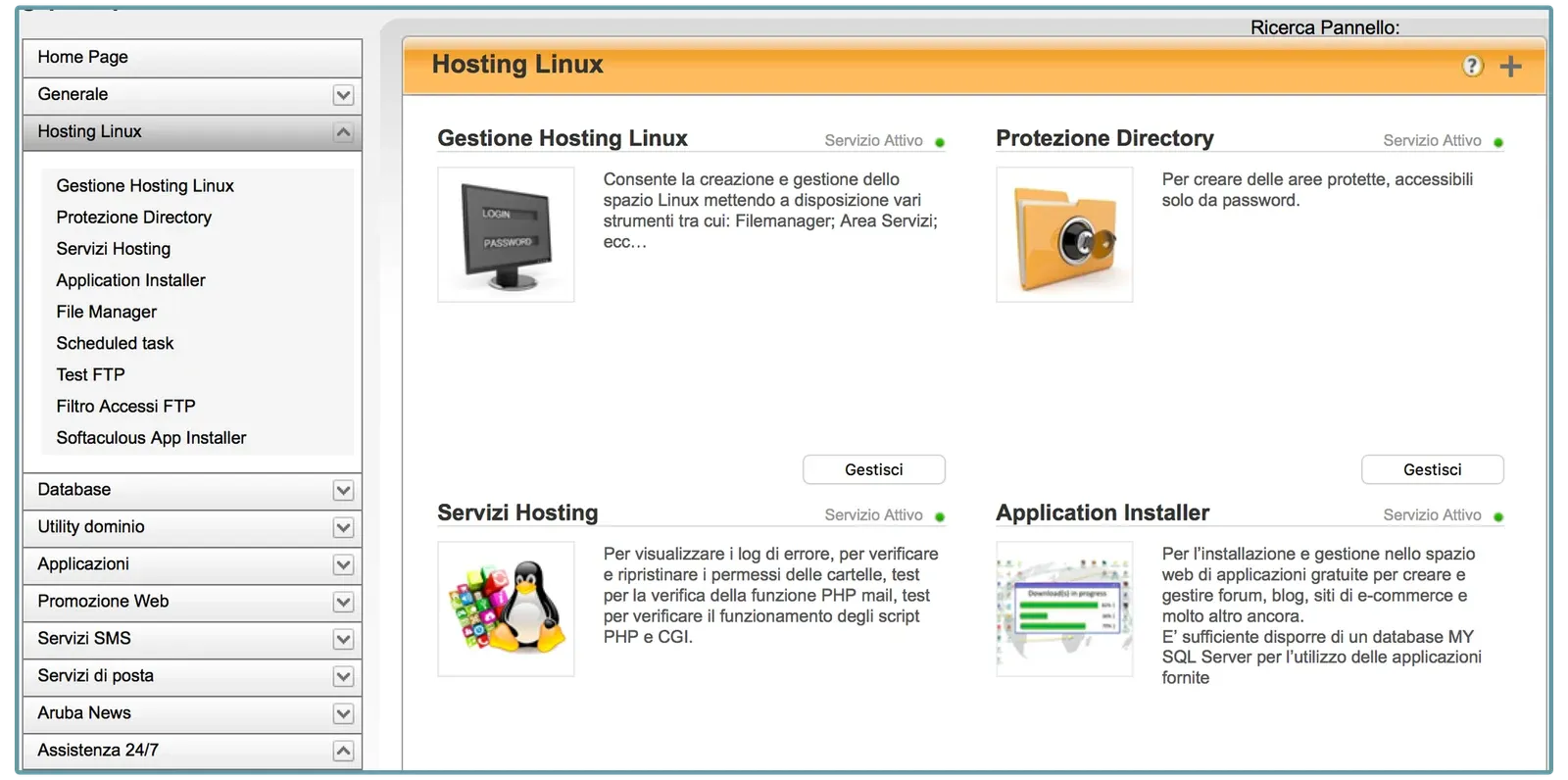
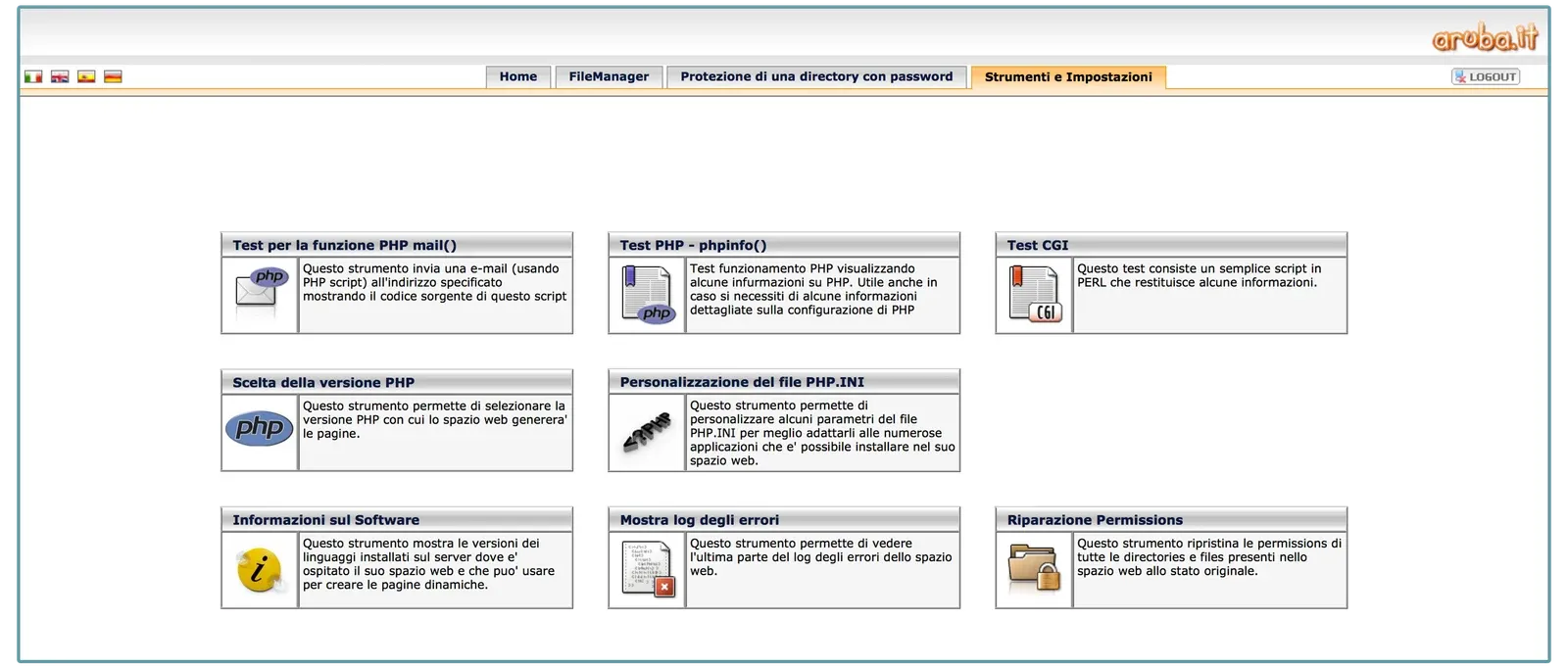
- Then click on the Servizi Hosting (Hosting Services) section and switch to the Strumenti e Impostazioni (Tools and Settings) tab
- From this screen, select the Riparazione Permissions (Permissions Repair) option and the problem will be fixed automatically within a few seconds
- The website will be back online, but the next WordPress update may cause the problem again. To make the fix permanent and avoid repairing the permissions every time, edit the wp-config.php file in your WordPress install, adding these two lines:
Before you touch it, save a copy of
wp-config.php: if anything goes wrong you just upload the original back.
define('FS_CHMOD_FILE',0755);

define('FS_CHMOD_DIR',0755);
We have now permanently fixed the Internal Server Error on Aruba’s Linux hosting with WordPress. Reload the website page to make sure everything is back to normal.
If the problem comes back
If the problem persists despite these steps, the error may be caused by other factors that have nothing to do with permissions and need a different approach. I recommend checking that the server configuration meets the WordPress requirements, then contacting your web hosting provider, who will help you track down and fix the problem.
Frequently asked questions
Why does this error happen specifically on Aruba hosting?
Because after an install, a migration or an update, WordPress files can end up with permissions the server configuration does not accept, and Apache answers with a 500 instead of serving the site. The "Permissions Repair" entry in the panel puts the permissions back into a valid state, which is why it fixes things in a few seconds.
What are the FS_CHMOD_FILE and FS_CHMOD_DIR lines for?
They tell WordPress which permissions to use when creating files and folders while updating itself, themes or plugins. Without them, every update can recreate the same situation and you have to repeat the repair from the panel: with those two lines the problem stops coming back.
What if the error is still there after the repair?
Then permissions were not the cause. The places to look, in order: the server error log, `WP_DEBUG` enabled to see the real error instead of the blank page, the `.htaccess` file (rename it and reload: if the site comes back, that was it), the PHP memory limit, and finally the plugins, by disabling them all and turning them back on one at a time.