How to remove the HomeGroup icon from the desktop

Contents
It’s a day like any other. You turn off your computer, go to sleep, and when you turn it back on the next day the HomeGroup icon is sitting on your desktop, uninvited.
No, there are no ghosts. And it wasn’t Albus Dumbledore who made it appear either.
Where that icon comes from
The blame lies with some updates Microsoft released for Windows 8 and Windows 8.1, which – for reasons unknown – automatically enable the HomeGroup icon on the desktop. Unfortunately, the usual “right-click – Delete” isn’t enough to remove it, and dragging it to the Recycle Bin does nothing.
So here’s the quickest and easiest way to get rid of it.
How to remove it
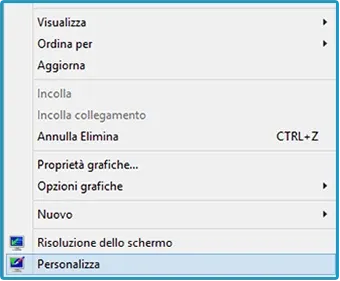
- First of all, right-click on an empty spot on the desktop, choose Personalize, then select Change desktop icons in the top left.
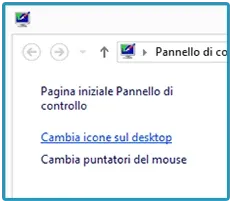
- Now, in the Desktop icons tab, check Network, click the Apply button, then uncheck the box you just ticked and select Ok to confirm.
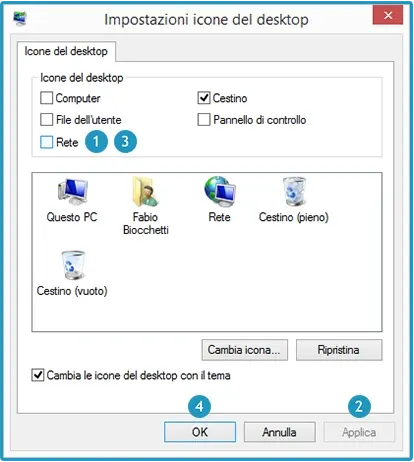
Finally, the icon will be gone. Easy, right?
If it comes back
This kind of update may be released again in the future, so the squatter HomeGroup icon might reappear — but just follow these steps again to remove it. See you soon!
Want to know more: HomeGroup lets you share documents, pictures, videos and any other kind of file between users connected – through a PC running Windows 7 or later – to the home network. Printers and other devices can be shared too. On top of that, HomeGroup is password-protected, so you can decide what to share with other users. Files can also be set to read-only mode, to keep unauthorized people from making changes.
If you want to turn it on or learn more about how it works, you can check the official documentation on the Microsoft website.
Frequently asked questions
Why does the HomeGroup icon come back after updates?
Because it's not a file you left there: it's one of the desktop system icons, and some Windows 8 and 8.1 updates re-enable it. Every time it reappears you just have to repeat the procedure described here, which takes about ten seconds.
Why can't I delete it with a right click or drag it to the Recycle Bin?
Because it's not a shortcut or a folder, but a system icon controlled by the "Desktop Icon Settings" panel. The Recycle Bin won't accept it and right-clicking offers no "Delete": the only way is to uncheck it in that panel, and that's exactly what the Network toggle trick does.
Does HomeGroup still exist on Windows 10 and 11?
No. Microsoft removed HomeGroup starting with Windows 10 version 1803, in 2018: since then, sharing on a home network is done with classic folder sharing or a cloud service. This guide is therefore only useful if you still have a machine running Windows 8 or 8.1.