Windows 8.1 and graphics card problems
Contents
Upgraded your laptop to Windows 8.1 and now you’re having graphics card problems? You’re not the only one.
The common symptoms are:
- Brightness control not working.
- Fans at full speed even when the computer is cold.
- Worse graphics performance (stuttering games, etc.)
- Generic errors right after startup (The application has stopped working)
- Frequent, unexpected PC restarts
Don’t panic!
Even though it’s just an update, Windows 8.1 changes the way the operating system handles graphics cards in certain situations. Fortunately there are several ways to (try to) fix it.
Before uninstalling the drivers, create a restore point: if the new ones don’t work you can roll back in a few minutes.
First of all, you need to uninstall the graphics drivers that were already on the PC before the update.
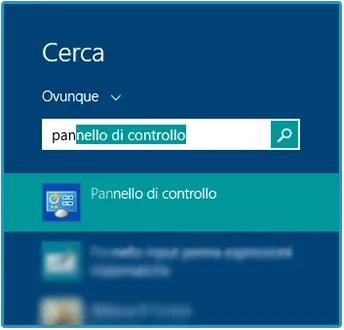
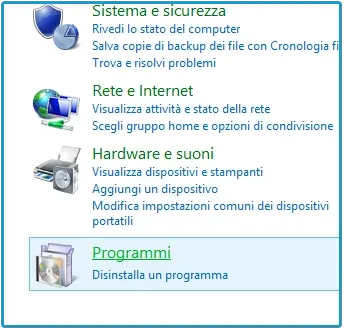
To do this, open the Control Panel. Just go to Start, then directly type “Control Panel” and it will show up in the search results. Open it and go to the Programs section (or Programs and Features).
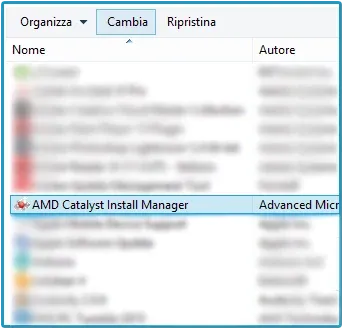
Now find the entries for your graphics card in the list. If it’s AMD (or ATI), look for AMD Catalyst Install Manager. If it’s Nvidia, select Nvidia Drivers. Once you’ve picked the driver, click Change or Uninstall on the bar at the top.
During the uninstallation the screen may flicker or go black — that’s normal. When it’s done, restart the PC. The screen resolution may be lower and the icons may look bigger; nothing strange about that either. Everything will go back to normal.
Now you need to download and install the new drivers. Go to your PC manufacturer’s website and find the Support and Drivers section. Here are the links to the support pages of the main manufacturers:
Asus | Acer | HP | Samsung | Lenovo | Toshiba, now Dynabook | Dell
Find your PC’s serial number (the instructions are right there on the manufacturer’s website), type it into the appropriate box, choose Windows 8.1 as the operating system and download the video drivers. You might also find them listed as VGA Drivers or Graphic Drivers.
At this point just install them and restart the PC to fix the problem. If Windows 8.1 isn’t on the list, select Windows 8 and try installing this older version of the drivers. In my case the latest available drivers were the Windows 8 ones and they worked perfectly.
If none of the driver versions is supported and the problem persists, we have three options:
OPTION 1
The manufacturer’s drivers. Try downloading the drivers directly from the graphics card manufacturer’s website. These are generic drivers that may leave out some features, like brightness control, but performance will be optimal and they will avoid conflicts, since they’re updated and compatible with Windows 8.1. If you have an AMD graphics card, download them from here; if you have an Nvidia, from here.
OPTION 2
Custom-modified drivers. Back then there were packages like LeshCatLabs’ UniFL, which merged the Intel and AMD drivers for hybrid cards. The project is no longer online and I have no replacement to recommend: it’s an option that can be considered closed today, and it could break your PC anyway.
OPTION 3
Restore. Your computer evidently isn’t fully compatible with Windows 8.1. If the situation is tolerable and the system stays stable anyway, all you can do is periodically check whether your PC manufacturer releases updated drivers. Otherwise I recommend restoring the computer to Windows 8 and ignoring the update to 8.1.
Good luck!
Frequently asked questions
Why does the Windows 8.1 upgrade cause graphics card problems?
Because 8.1 changes the way the system handles graphics, especially on laptops with dual graphics cards. The drivers installed before the upgrade stay in place but they're no longer the right ones, and the typical symptoms are brightness that can't be adjusted anymore, fans running at full speed and crashes on startup.
Are the PC manufacturer's drivers better, or the ones from AMD and Nvidia?
Try the laptop manufacturer's drivers first: they contain the customizations for that specific model, including brightness control, which generic drivers often can't handle. The AMD or Nvidia drivers are the second choice, to be used when there's nothing more recent for your model.
Does this guide still make sense in 2026?
It's for anyone who still has that machine at home, which happens more often than you'd think. That said, Windows 8.1 hasn't received security updates since January 2023: if the computer is still in daily use, the right thing to do isn't fixing the drivers but moving to a system that still gets patches.